ReCal |

|
ReCal |
|
This application is intended to help you to account the times you spent for your projects. From the most often used calendar entries simply choose the one that you start working on. ReCal creates a calendar entry and prolongs it automatically while it is active. When you switch to another activity simply select it from the menu and ReCal stops the previous to resume with the new one. Once you are done or when you have a break just stop the running activity. All with a simple menu selection.
|
If you are working per hour and account your time with ReCal you can easily extract all your accounting entries at the end of the month via CaLister. From this application you can export the retrieved accounting records to Numbers or another application to process an invoice. |

|
The screen shot below shows the most important elements created by this application. You can start be exploring with a click into certain areas or simply by reading on.
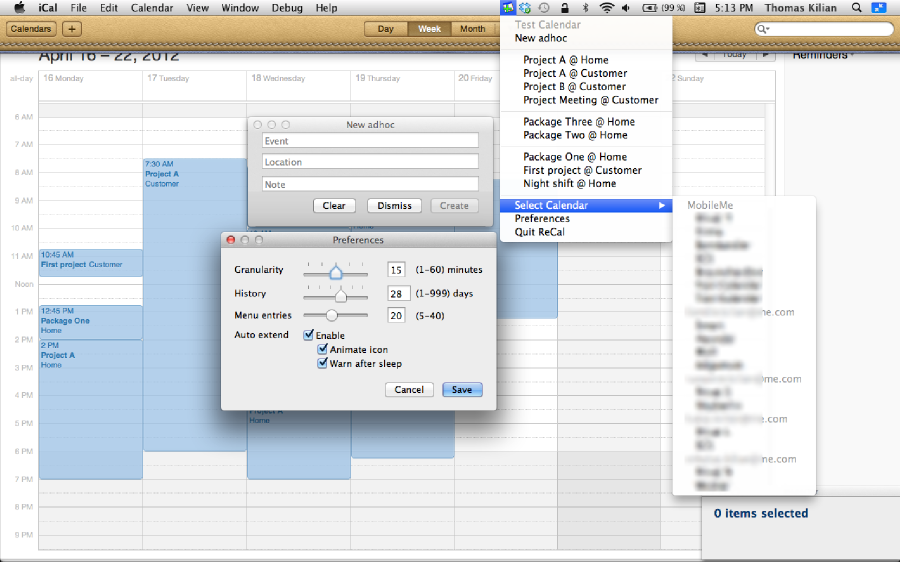
ReCal docks in the system menu bar with an icon. The first entry names the active calendar. The idea behind ReCal is that you account your time to one single calendar with multiple events. So the very first time you have to select the calendar where your events are stored.
The next menu lines take an adhoc event creation and the recent events list.
Below the event list there is one sub-menu to change the active calendar. It is followed by the preferences selection and the option to quit ReCal.
After starting ReCal the icon displays as
 .
Once you selected an event the icon displays with a rotating arrow as
.
Once you selected an event the icon displays with a rotating arrow as
 .
Per default the arrow will rotate to indicate that the new event is active.
This means it will extend the event’s duration until you stop it or you switch to another activity.
The activated event is also checked in the drop down. To stop it simly select it once again.
This removes the check mark and returns the icon back to the plus symbol.
.
Per default the arrow will rotate to indicate that the new event is active.
This means it will extend the event’s duration until you stop it or you switch to another activity.
The activated event is also checked in the drop down. To stop it simly select it once again.
This removes the check mark and returns the icon back to the plus symbol.
ReCal checks the history of the active calendar for events up to a predefined history. The nice thing is that the most often used events appear at the top of the list. It is likely that you find quite a number of events which sound similar and are different simply because you did not use ReCal but typed all the entries by hand. ReCal groups these events so you can select the one which appears to be that with the correct spelling. After using ReCal for some time you will only find the correct entries as the other ones sort out themselves.
Although this seems obvious: each entry starts with the name of the activity. If a location was given this is appended with an @-sign. Else just the title is displayed.
Above the recent events list you find an entry to start an adhoc activity. This pops up the following menu:
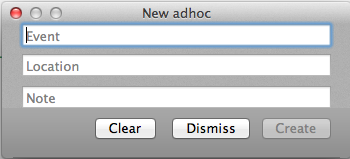
The field Event is mandatory. Optionally you can enter Location an a Note.
By pressing Create ReCal will create and start an activity like for the recent events.
Now here's another nice feature of ReCal. You can configure the granularity how your events will be accounted. Usually this is something like a quarter of an hour. Assuming you have set this number and you create an activity between the full hour and seven 1/2 minutes past it will start the activity at the full hour. From seven 1/2 minutes to quarter past it will start at a quarter past. Again up to 23 1/2 minutes past it will be backdated to quarter past before starting at half past and so on.
In the same way the duration of each activity is extended. When reaching minutes 7 1/2, 23 1/2 and so on the activity is prolonged the next 15 minutes.
Instead of 15 minutes you can take almost all minute values of an hour. The most accurate number is one minute where the activity is started the next full minute (past or future). Then each full 30 seconds the activity is prolonged one minute.
Of course you can take also units which do not divide an hour without remainder (like 45 minutes). In that case the timings starts at the current full minute and is prolonged after half the granularity value in minutes has passed.
When switching to another activity the new one will automatically queue after the recent one. Of course only if your minimal working time exceeded the granularity.
This sub-menu simply lists all your calendars. They are grouped under the single CalDAV calendars you have enabled. The selected calendar appears in the first line of the main menu. The first time you start ReCal it is mandatory to select/activate a single calendar.
Although ReCal has only a few options it can be configured for a variety of use cases.
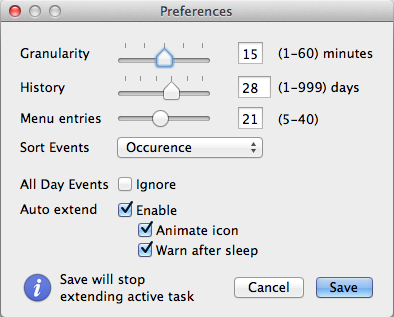
With this option you can determine the initial length and extension factor for events created by ReCal. The slider suggests common values (1, 5, 15, 30 and 60) but you can set an arbitrary minute value in the text field.
The number of days that ReCal looks back in history is adjusted with this option. You can set any value from one to 999 days. The slider suggests some common values: 3, 7, 14, 28, 180 and 360 days.
Simply adjust how many menu entries for recent events are listed at maximum.
Here you can choose whether the different events found in the calendar will be sorted alphabetically or by occurence. While the first is obvious, the second option will place the most used events on top of the list as described in chapter Recent Events List.
Choose here whether you don't want all-day events to appear in the menu of events.
If you just want ReCal to create events in the calender without automatically extending it then you can uncheck this option. The following two options are only meaningfull if this option is turned on.
If you don't like the animated icon during a running activity you can turn it off here. In that case the icon for the active event is the static cycle arrow.
When this option is set and you have sent your machine to sleep while an event was still active then you reveive a warning after the machine is resumed. This warning lets you either resume the activity or terminate it. In the latter case it will retain the duration before the sleep was entered.
This information is only shown when you have an active event and you did change one of the first three options.
In that case the activity will be terminated after a Save and you must start it new.
I have written this litte app for my personal use. That means my (limited) use case is fully covered by what the app currently does. In the likely case that your use case is different from mine just drop me a line and I'll see what can be done.
