CaLister
|
|
CaLister
|
|
This application will help you to easily retrieve certain events from your calendar.
The most important use case is when you want to retrieve events in a time range eventually with a specific name.
E.g. all events for a certain project of the last month to create an invoice. In that case you would once define a
profile with the appropriate search parameters like the calendar(s) the time range Last Month and eventually
some string parameter to limit the result set. Now you can simply select that profile by its name and run the Search.
|
If you are working per hour then the easiest way is to use ReCal for accounting. This works perfectly when you're working on any Mac. |

|
This version is localized for English and German language along with imperial and metric units. This help, however, is just written in English and I will not translate this to German - unless a kind soul will pay for it, which is unlikely to happen.
Compared to the previous version, I removed the printing support since it turned out to be a big burden and you can achieve it more simply by exporting results to Numbers.app or the like. Also I recompiled it for the most recent OS version.
For the following description we assume the calendar entries in a specific week as shown below:

To quickly find out the description of a certain area just click into the screen shot below.
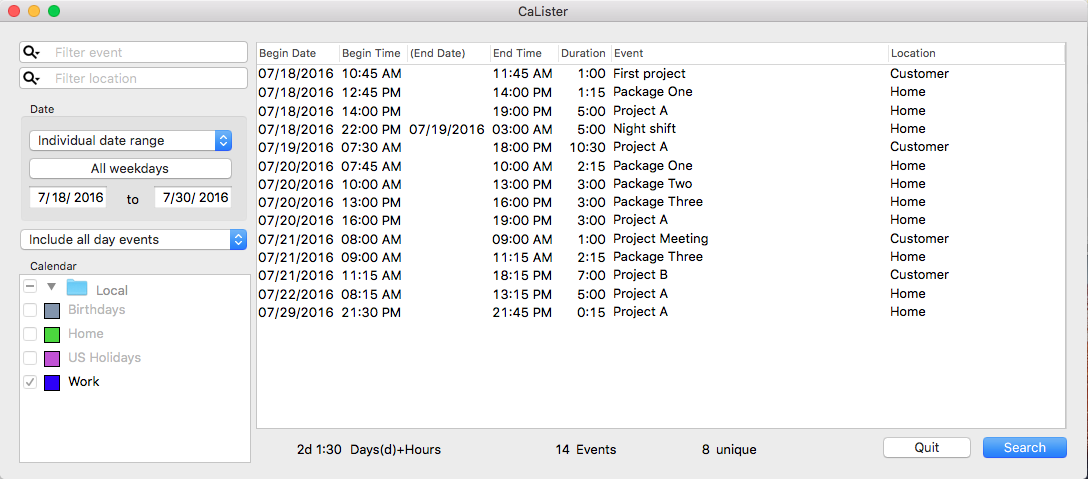
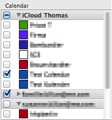
When CaLister is launched it will check all calendars available on your machine. As can be seen, the calenders are group like in Calendar.app and you can select the single calendars or a whole group. When running a search, only the selected calenders will be looked at.
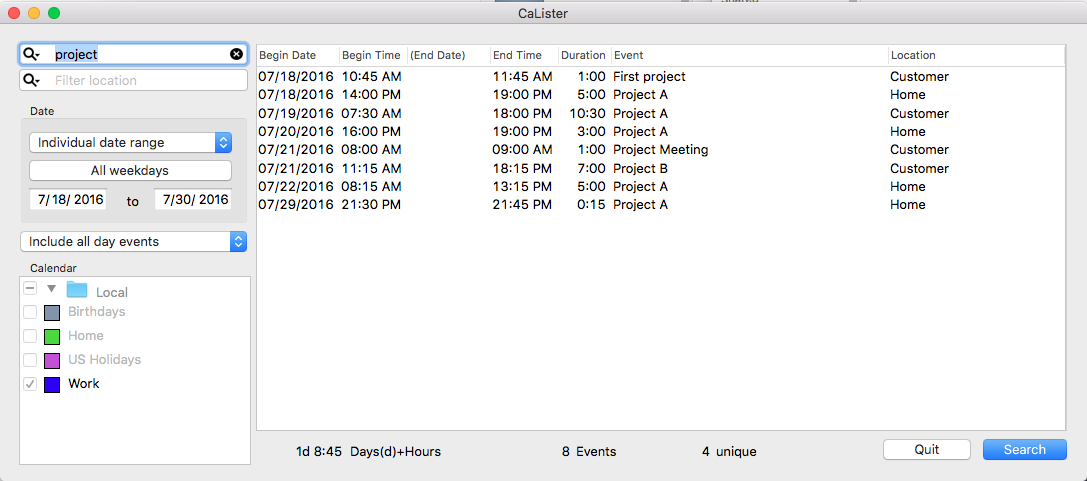
Description and Location of events can be filtered using any string you specify. The filter matches to any sub-string of an event. For example if you specify ‘project’ as filter then all ‘Project A’, ‘Project Meeting’ and ‘First project’ events will match.
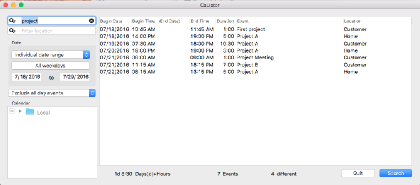
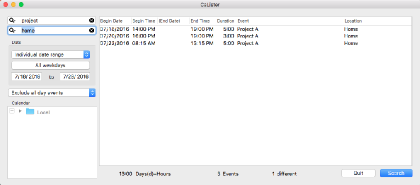
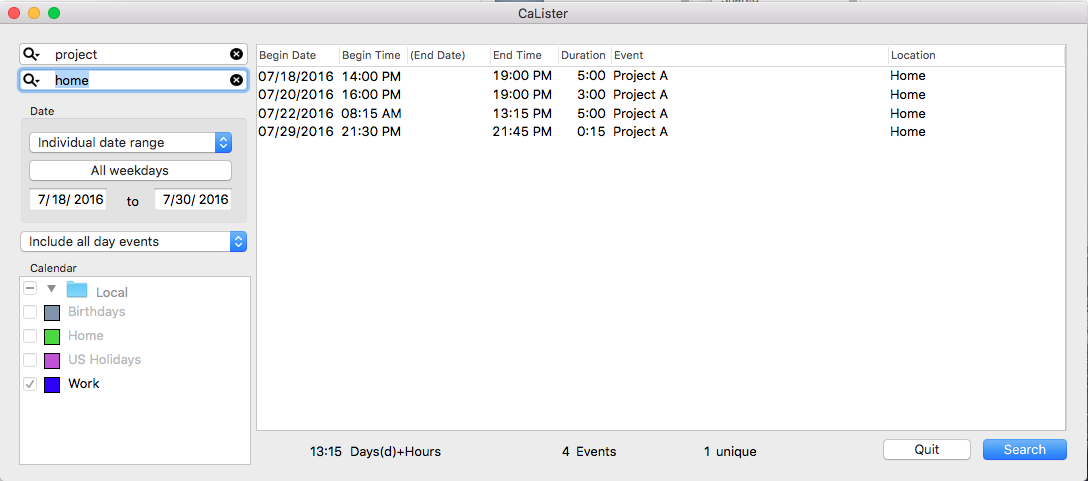
Both filters create a dissection. That means if you filter by description ‘project’ and location ‘home’ you will get only those events which you titled 'project' and located at 'home'.
When you click the magnification glass inside any filter box you will find the options shown right.
The Ignore Case option is checked by default (refer to
Profiles).
If you had unchecked this with the previous search then only ‘First project’ would have matched (since the others have an upper case P in Project).
The 'Match Whole String' will list only those events that match completely the entered string (respecting spaces as well).
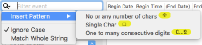
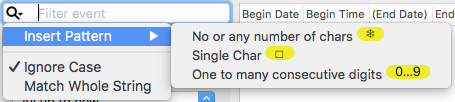
For a more advanced search you can use 'Insert Pattern', which allows for arbitrary characters. 'No or any number of chars' will match exactly as it says.
So, if you enter a pattern like
 it will match 'cats', 'cows', 'cassandra' or simply 'cs'. The 'Single Char' pattern
 in contrast would only match 'cassandra'.
Finally a pattern with 'One to many consecutive digits' like
in contrast would only match 'cassandra'.
Finally a pattern with 'One to many consecutive digits' like
 would match 'a1995b' but not 'a19b' (since there needs to be at least one additional digit between 'a19' and 'b'.
The Date box allows to filter a date range. The drop-down allows a quick access to commonly used date ranges, also by using keyboard shortcuts:
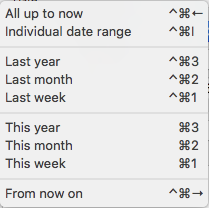
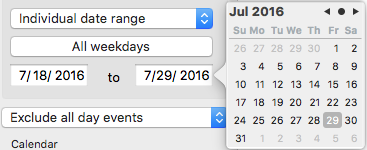
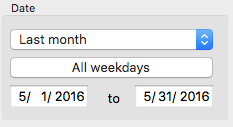
Individual date range will just place the focus to the start date (makes more sense when using keyboard shortcuts). All other menu entries will set start and end date
to whatever one would expect. The open ended ones are limited to 1/1/2000 for start and current date plus two years for the end (since recurring events would else overflow the result list).
Anyhow, you can modify start and end at your wish.
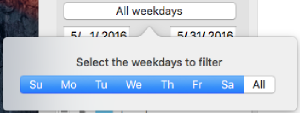
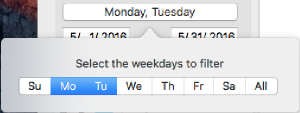
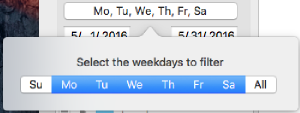
Additionally it is possible to filter for certain week days. By
 -clicking
the single weekdays you can select individual ranges.
-clicking
the single weekdays you can select individual ranges.
The drop down below the date selection specifies what to do with all-day-events. It is possible to
The results are simply listed in a fixed tabular format. The Date and Time column show the date/time when the appropriate event starts.
(End Date) is only filled where it is different to Begin Date. End Time is the next minute after the event ends.
Duration is the calculated event duration and displayed in hh:mm format. Event and Location simply hold the value of the according event property.
Additionally to above shown columns you can configure the following to appear.
Begin Day will display the weekday of the appropriate date.Calendar shows the name of the calender where the displayed event was found. This column will make sense only if you are searching in multiple calendars.Notes will show the full or condensed (line breaks removed) contents of the notes (configurable via the
Profiles).
Alarms shows a tick where the event has one ore more reminders set. Note that when copying this column, it will contain the number of reminders being set.
So usually this will be zero or one (but might also be a bigger number).
It is also possible to show the
Weekday which will display the name of the according weekday.Further you can double click a single row in the result window. This will open Calendar.app and its view of the respective event. Note that Apple made it overly complicated to highlight the event in Calendar. app, so it is only shown in the currently set view.
In the bottom line below the search results you will find a number of summaries:
 You can configure further formats (hours only and working hours) with
Profiles.
You can configure further formats (hours only and working hours) with
Profiles.
With version 4.0 of CaLister you can also show summaries for events and locations per search (see Profiles):
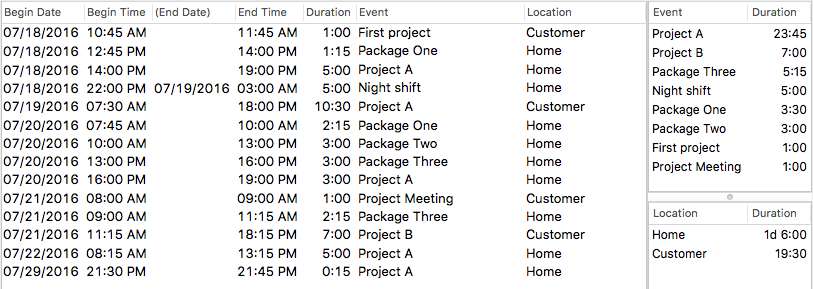
The results in the summaries are always ordered descending to their total lengths.
Copy/paste into other applications like numbers works like all selections. Click and shift- or
-click
the desired entries or use
-A
to select all entries.
Now you can use
-C
-V
to copy/paste the entries into any other application. Alternatively you can use
 --C
to copy all entries at once.
The single columns are separated with a TAB char.
--C
to copy all entries at once.
The single columns are separated with a TAB char.
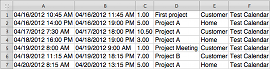
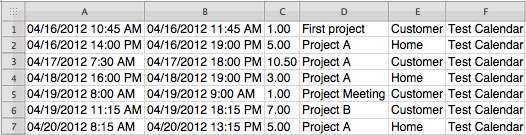
A couple of entries pasted into Numbers could look like this:
You can
configure
which columns shall be included in a copy operation.
In this example the from- and to-date result in the single columns A and B instead of having 5 separate columns.
If the Alarms column is included it will contain the number of alarms set for the event instead of the check-mark displayed in the result list.
You can copy the event summaries with
-E
and the location summaries with
-L.
Both will copy the rows/columns as displayed.
While copy paste is an easy way to transfer search results to spreadsheets, a CSV export can alternatively be used for this. Further a CSV export can be used for other programs as input (e.g. to create invoices).
You can configure folder, filename (with patterns) and format in the
Profiles.
An export can be issued from the File/Export menu for either the current selection or the whole table.
One of the great strengths of CaLister is the ability to store so-called profiles that define a whole reusable search. The profiles are named with an arbitrary but unique string.
The profile named with an empty string is loaded by default when CaLister is launched. Profiles are defined via CaLister/Settings or
-,
and can be selected later from the Profile menu.
Starting from V5 of CaLister the profile has been split into five tabs:
Filter, time range and calenders can be set like in the
main window
Only if you specify Individual date range you can not enter the individual dates since that would not make much sense.
Instead you will be asked to enter the dates when the profile is loaded in the
main window.
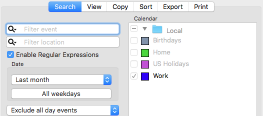
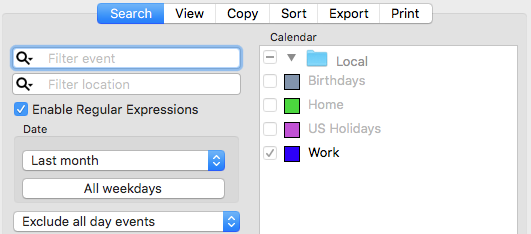
For a even more advanced search than the above mentioned patterns you can Enable Regular Expressions.
If you don't know what that is you should not turn this option on (you may refer to
RegEx101).
Once this option is turned on you will find an additional flag in the magnification glass option list of search fields that allow you to interpret the entered text as regex.
With the View tab you can define which calendar columns shall appear in the
main window
You can add single columns by selecting them from the drop down below the table.
To remove a column use the
 button. Rearrange the order simply via drag and drop of the shown column names.
Most of the available columns are self-explanatory. The
button. Rearrange the order simply via drag and drop of the shown column names.
Most of the available columns are self-explanatory. The (End Date) (with the brackets) will make the date only show if it is different to the start date and else left blank.
The Notes (compressed) will show the notes of the event on a single line with line breaks removed and eventually truncated.
When using Notes the notes will eventually stretch over multiple lines, though also being clipped to the width of the column.
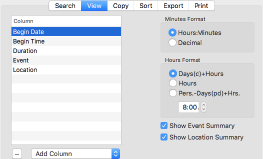
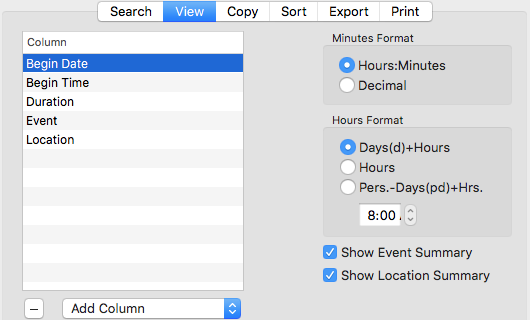
With Minutes Format you can switch between decimal and hours:minutes format for the displayed duration values.
The selection Hours Format allows to switch between 3 formats for the "larger" time part.
Days(d)+Hours will calculate the number of full days (24 hours) and the remaining hours. So if e.g. 25 hours are to be displayed you will see 1d 1 for one day and one hour.
Note that the displayed minutes format always depends on the chosen value above.
Hours will just display the hours as they are summed up (that is 25 in the above example).
Pers.-Days(pd)+Hrs. will additionally show a field to enter the time (hours and minutes) which defines a person day (usually that would be something like 8 hours).
So for above example with a setting of 8 hours per person day you would see 3pd 1 (since 3*8+1 = 25).
The lower two check boxes control whether any of the event/location summaries will be shown for a search.
This tab allows to configure which calendar columns shall be included in a copy operation.
Similarly to the previously described tab you can add, remove and re-arrange columns you want to have copied. Although most of the column names are self-explanatory here is a list of the possible choices:
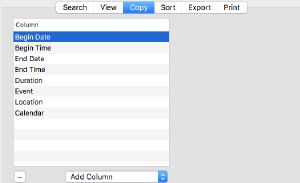
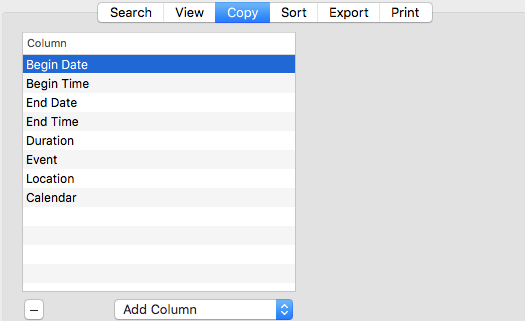
All columns are separated with a tab character which will usually allow to paste them in applications like Numbers so they appear in separate columns.
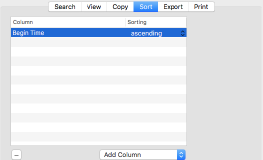
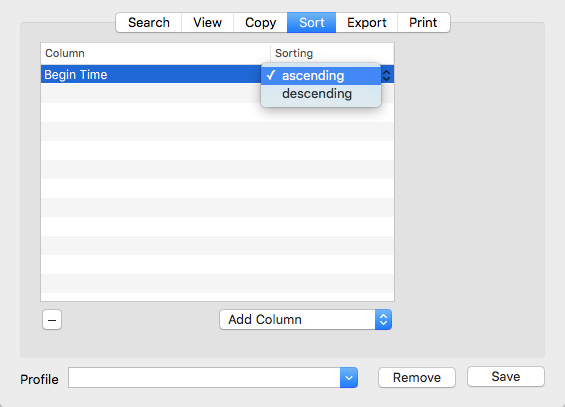
The Sort tab allows to define sorting criteria to be applied to search results. Per default the results are sorted ascending by begin time.
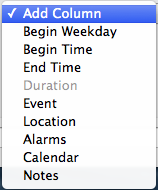
To add new sort criteria simply select them from the drop down shown right and they will be added to the list which will open from the
Add Column popup button.
 .
.
If you want a different sorting order you can add from the Add Column, drag them to the right postition or remove them with the
button. Ascending or descending is defined in the Sorting column.
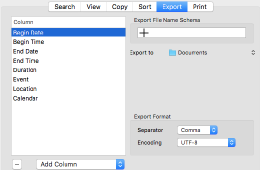
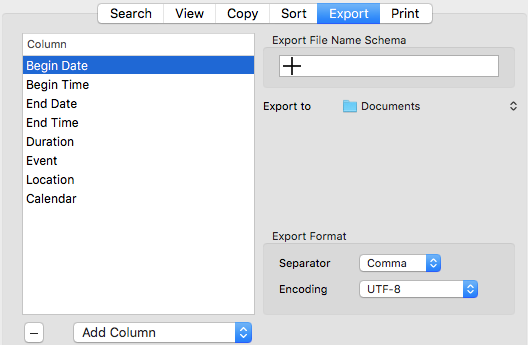
In order to export search results to CSV files you can use this profile tab. Similarly to the tabs explained above, you can add single columns to be exported with the list to the left. The export will contain the columns in the order as the appear in this list.
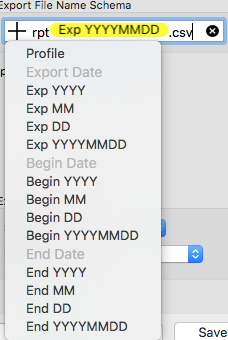
To ease naming of the export file, the Export File Name Schema input box takes plain text plus a number of patterns that can be added with the plus symbol.
Once you issue a File/Export/... the pattern will be expanded and set as default in the save dialog which points to the Export to folder.
Note that the input box is rather narrow and when using the pattern tokens it might be necessary to scroll with the cursor to see the whole file name pattern.
Finally, in the Export Format box you can change parameters for the export format.
Character encoding is preset to UTF-8 but for legacy/interoperatibility you can change that to be Mac-OS Roman or Windows CP1252.
Further the separator can be changed from comma to semi-colon or tab.
Once I wrote this app for my personal use. And ever since I got a lot of feedback so I added a number of features. In case that your use case has still more requirements just drop me a line and I'll see what can be done. You may write in either German or English.
--C
to copy all results
